Set up smart home devices so both partners can control them, receive useful alerts, and agree on what happens automatically. This guide is for couples starting with a few devices or reorganizing an existing setup. Allow 1–3 hours, depending on how many devices you install; no advanced technical skills are needed.

Give the gift of listening to the book lover on your list
- Choose a 1-, 3-, 6- or 12-month membership
- They pick the audiobooks they love
- Easy to send by email

Amazon Echo Hub 8-Inch Smart Home Control Panel
- ✔ Display: 8-inch touchscreen, 1280 × 800
- ✔ Smart home connectivity: Wi-Fi, Bluetooth Low Energy Mesh, Zigbee, Thread, Matter controller, Amazon Sidewalk
- ✔ Audio: Two top-ported full-range speakers with stereo playback

Amazon Echo Show 5 Smart Display with Alexa, Charcoal
- ✔ Display: 5.5-inch touchscreen
- ✔ Camera: 2 MP with built-in shutter
- ✔ Dimensions: 5.8 × 3.6 × 3.2 in (147 × 91 × 82 mm)
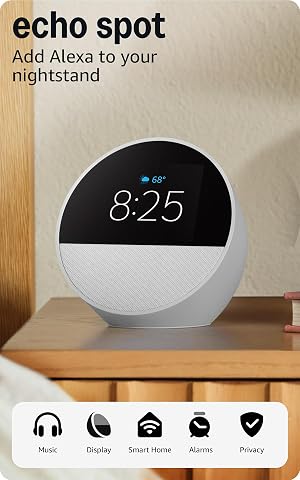
Amazon Echo Spot Smart Alarm Clock with Alexa, Glacier White
- ✔ Display: 2.83-inch touchscreen, 240 × 320 pixels
- ✔ Camera: None
- ✔ Dimensions: 4.5 × 4.1 × 4.4 in (113 × 103 × 111 mm)
Difficulty: Beginner | Time: 1–3 hours
What You’ll Need
Tools & Materials:
- A smartphone for each partner
- A reliable home Wi-Fi network and its password
- Smart home devices and any required hubs
- Manufacturer apps and a shared smart home platform, if supported
- Device manuals and a notepad or shared notes app
Knowledge:
- Basic ability to install phone apps and connect to Wi-Fi
- Knowledge of the home network name and password
- Agreement on which household tasks you want devices to help with
Check device compatibility before buying. Some devices require a hub, a particular Wi-Fi band, or a specific smart home platform. Start with a small group of devices; you can add more after both partners are comfortable with the shared controls.
Amazon Echo Hub 8-Inch Smart Home Control Panel
The Echo Hub is the clearest fit when both partners want a common place to manage the home. Its 8-inch customizable dashboard can bring compatible controls, routines, and camera feeds into one visible panel, which can reduce the friction of remembering separate apps or voice commands. Compared with the Echo Show 5, the Hub is purpose-built for control and offers more room to organize smart home sections; it is less oriented toward casual video calls and media viewing.Its connectivity is the other major advantage for a couple building around different devices: the Hub supports Zigbee, Thread, and Matter as a controller, alongside Wi-Fi and Bluetooth. That breadth may help connect a compatible mix of devices, though Matter support is not a guarantee that every device feature will be available. This is a wall-oriented panel, not a portable screen. The included wall mount makes installation possible, but couples who prefer a counter setup need to buy the stand separately, and cable routing or PoE may add further setup decisions.Choose it when shared visibility and device management matter more than portability. The Echo Spot is simpler for a bedside routine, while the Show 5 is more balanced for calls and entertainment. The Hub’s narrower role is also its limitation: a couple that owns few compatible smart devices may not need a dedicated control panel at all.
Pros:
- 8-inch customizable dashboard gives both partners a visible place for compatible controls and routines.
- Supports Wi-Fi, Bluetooth, Zigbee, Thread, and Matter controller functionality.
- Wall mount and installation hardware are included.
- Can display compatible camera feeds and manage supported security systems.
Cons:
- Not designed for handheld or portable use.
- Tabletop stand, cable pass-throughs, and PoE adapter are sold separately.
- Matter support is limited to controller functionality, and compatibility varies.
Best for: Couples with several compatible smart home devices who want a shared, wall-mounted control dashboard.
Not ideal for: Couples seeking a portable screen, a simple bedside clock, or a tabletop panel without buying a separate stand.
Bottom line: For couples coordinating a connected home, the Echo Hub offers the most useful shared control point, provided its compatibility and installation tradeoffs fit the household.
“For couples coordinating a connected home, the Echo Hub offers the most useful shared control point, provided its compatibility and installation tradeoffs fit the household.”
Amazon Echo Show 5 Smart Display with Alexa, Charcoal
The Echo Show 5 is the more flexible pick for couples who want one small screen to handle a mix of tasks. Its 5.5-inch touchscreen and 2 MP camera support video calls, media viewing, compatible camera feeds, and basic smart home control. That combination makes it better suited than the camera-free Echo Spot to a kitchen counter or shared living area where calls and glances at content are useful. It is less capable as a dedicated control surface than the larger Echo Hub, whose dashboard and broader smart home connectivity are designed around device management.Privacy is a practical consideration in a shared home. The Show 5 includes a built-in camera shutter and a button to turn off the microphone and camera, giving each partner a direct way to limit access. A 1.75-inch speaker supports everyday listening, but a compact display should not be mistaken for a room-filling audio system. Its small footprint is useful where a Hub would feel imposing; in return, the screen has less space for arranging controls and viewing content.This model makes sense when versatility matters more than a specialized role. Compared with the Spot, it offers a larger display and video calling, but it introduces a camera and does not provide the Hub’s set of connectivity standards. Some skills and services may require subscriptions or extra fees, and the device does not support ad-hoc or peer-to-peer Wi-Fi networks.
Pros:
- Compact 5.5-inch screen suits counters and other shared spaces.
- Built-in camera supports video calls and compatible camera viewing.
- Camera shutter and microphone/camera off button offer direct privacy controls.
- Uses recycled fabric and aluminum, with recyclable packaging.
Cons:
- Some skills and services may involve subscriptions or additional fees.
- Does not support ad-hoc or peer-to-peer Wi-Fi networks.
- Bluetooth speakers that require PIN codes are unsupported.
Best for: Couples who want a compact shared screen for video calls, everyday media, and compatible smart home controls.
Not ideal for: Households that want a camera-free bedroom device or a central dashboard with the Echo Hub’s broader connectivity.
Bottom line: The Echo Show 5 is the best middle ground for couples who value calls and a versatile small screen more than a dedicated smart home panel.
“The Echo Show 5 is the best middle ground for couples who value calls and a versatile small screen more than a dedicated smart home panel.”
Amazon Echo Spot Smart Alarm Clock with Alexa, Glacier White
The Echo Spot has the most focused role in this lineup: it brings Alexa routines and a compact clock display to a bedside table. Its 2.83-inch screen can show the time, weather, and song titles, while compatible routines can support a gradual wake-up and smart home controls. For couples who want a small device to anchor morning or evening habits, that is a simpler proposition than putting an 8-inch control panel on a wall.Privacy is a clear differentiator. The Spot has no camera and includes a microphone-off button, which may feel more appropriate in a bedroom than the camera-equipped Show 5. In exchange, it cannot handle video calls, and the small display is not as useful for browsing information or managing multiple devices. The Echo Hub is the stronger choice for broad shared control; the Spot is the better fit when a clock and routine are the priority.Its built-in speaker supports music, podcasts, and audiobooks, and it can extend a compatible eero network. That network feature depends on owning a compatible eero router and linking accounts, so it should be treated as a bonus rather than a reason to buy for every household. Couples without eero can still use the clock’s Alexa functions, but should compare it with the more versatile Show 5 if they want one device to cover several shared-room tasks.
Pros:
- Compact touchscreen displays time, weather, and song information.
- Alexa routines can support gradual wake-ups and compatible smart home actions.
- No camera; includes a microphone-off button.
- Made with 36% recycled materials.
Cons:
- The small display is less useful for broad home control than the Echo Hub or Show 5.
- eero network extension requires a compatible router and linked accounts.
- Does not support ad-hoc Wi-Fi networks or Bluetooth speakers that require PIN codes.
Best for: Couples who want a camera-free bedside clock with Alexa routines for waking, listening, and basic compatible controls.
Not ideal for: Couples who need video calls, a larger screen, or an always-visible dashboard for multiple smart home devices.
Bottom line: The Echo Spot is a sensible bedside choice for couples who prioritize simple routines and camera-free design over screen versatility.
“The Echo Spot is a sensible bedside choice for couples who prioritize simple routines and camera-free design over screen versatility.”
As an Amazon Associate we earn from qualifying purchases.
Before You Start
Discuss how each device will be used before connecting it. Agree on who can control devices, which alerts both partners should receive, and whether either person needs private controls for a bedroom or personal space. Review camera and microphone settings together, and avoid placing recording devices where someone would reasonably expect privacy.
Use a shared household account when the manufacturer supports it, or invite the second partner through the app’s household-sharing feature. Do not share a personal account password if separate access is available. Keep account recovery details somewhere both partners can access.
Step-by-Step Instructions
Step 1: Choose the first household tasks to automate
Write down two or three recurring tasks you both want to make easier, such as turning off lights at bedtime, adjusting the thermostat, or checking whether the front door is locked. For each task, identify who should be able to control it and whether it needs to happen automatically.
Choose tasks that have a clear shared benefit. Avoid automating a routine based on one person’s schedule until you have agreed how it should work when plans change.
Tip: Keep the first setup small. A light, a thermostat, and a door sensor can be easier to manage than several devices with overlapping controls.
Check: You have a short list of shared needs and know which device could address each one.
Step 2: Check compatibility and requirements
Look up each planned device in its product listing or manual. Confirm that it works with your Wi-Fi, any hub you own, and the smart home platform you plan to use. Check whether it needs a particular Wi-Fi band, a subscription, a bridge, or a wired connection.
For devices that connect to the electrical system, such as switches or thermostats, check the manufacturer’s installation requirements. Arrange qualified help if the instructions call for electrical work you are not trained to do.
Tip: Compatibility can vary by model, not just by brand. Check the exact model number before purchasing.
Check: Each device has a confirmed connection method and works with the platform you intend to use.
Choose the person who will create the household account, then invite the other partner using the platform’s family or home-sharing feature. On both phones, install the required app and accept the invitation. Check the roles and permissions each person receives.
Review camera, microphone, location, and activity-history settings together. Turn off features you do not need, and decide which alerts should go to both partners. Use a separate guest access option for visitors when available.
Tip: Confirm that both partners can still access essential controls if one phone is lost or replaced. Set up account recovery before relying on the system.
Check: Both partners can open the app, see the same home, and control the devices they agreed to share.
Step 4: Install and connect one device at a time
Place or install the first device according to its manual. Plug it in or mount it safely, then use the manufacturer’s app to add it to the home and connect it to Wi-Fi or its hub. Give it a clear name based on its location or purpose, such as “Hallway light” or “Living room thermostat.”
Repeat the process for each device. Finish setup and firmware updates for one device before starting the next so you can identify which connection has a problem.
Tip: Use location-based names both partners will recognize. Avoid personal shorthand or duplicate names such as “Light 1.”
Check: Each device appears in the correct room in the app, has an understandable name, and responds to a manual control.
Step 5: Test controls from both phones
Ask each partner to control every new device from their own phone. Turn lights on and off, change the thermostat by a small amount, or lock and unlock a compatible test device according to its manual. Confirm that each person sees the same device status.
Check any physical controls too, such as a wall switch or button. Agree on what to use when the internet or a phone app is unavailable, if the device supports local control.
Tip: Do not assume a device is shared just because it appears on the setup phone. Test the second person’s account directly.
Check: Both partners can use the agreed controls, and the displayed device status updates correctly.
Open the app’s routines, scenes, or automations section and create one routine for a task you both selected. For example, make a bedtime scene that turns off selected lights. Choose a name, the devices it affects, and a trigger both partners understand.
Review timing, location, and presence settings before saving. If the routine depends on one person’s phone being home, confirm that it still behaves correctly when the other person is home alone. Avoid adding sensitive actions, such as unlocking a door, until both partners understand the safeguards.
Tip: Start with a routine that is easy to reverse. Test it manually before adding schedules or location triggers.
Check: The routine runs as expected, and both partners can find, understand, and edit it.
Step 7: Set alert rules and review the setup
Choose which events should send alerts and who should receive them. Keep shared alerts focused on useful events, such as a door left open or a leak sensor warning. Disable duplicate or low-value notifications on one or both phones if they create noise.
Walk through the room together and review device names, routine behavior, and privacy settings. Write down the household account recovery method and any manual steps needed if a device stops responding.
Tip: Revisit alert choices after living with the setup for a few days. Too many notifications can make important ones easy to miss.
Check: Both partners can identify the alerts they will receive and know how to change a routine or get help.
Common Mistakes to Avoid
- Buying devices before checking platform, hub, or Wi-Fi compatibility. — Check the exact model’s requirements and confirm how it connects before purchasing.
- Setting everything up under one person’s app without inviting the other partner. — Use household sharing and test access from both accounts before relying on the devices.
- Creating routines based on one partner’s schedule or phone location without discussing exceptions. — Agree on triggers together and test what happens when either partner is home alone or plans change.
- Enabling camera, microphone, or location features by default. — Review privacy and permission settings together, and enable only the features you both want.
Troubleshooting
Problem: A device does not appear during setup.
Solution: Confirm it has power, is in pairing mode, and is close enough to the router or hub. Check the manual for Wi-Fi band requirements, then restart the setup process.
Problem: The device works for one partner but not the other.
Solution: Check that the second partner accepted the household invitation and is signed into the correct account. Review household permissions, then refresh the app or sign in again.
Problem: A routine runs at the wrong time or when one partner is away.
Solution: Open the routine and inspect its schedule, time zone, location trigger, and presence rules. Replace a person-specific trigger with a shared schedule or manual control if that better matches your agreement.
Problem: A device frequently goes offline.
Solution: Check the Wi-Fi signal where the device is installed, restart the router and device, and install available firmware updates. If it still disconnects, consult the manufacturer’s support for model-specific network requirements.
What Success Looks Like
The setup is working when both partners can access the shared home, control each agreed device from their own phones, and understand the routine and alerts. Devices show the correct room and status, the routine behaves as agreed, and both partners know how to change settings or recover access.
Next Steps
Use the setup for several days, then review which routines and alerts are helpful. Remove notifications you ignore, adjust schedules that do not fit both partners, and add another device only when you have a clear shared use for it. Recheck account access after changing phones, Wi-Fi equipment, or household membership.
Frequently Asked Questions
Do both partners need the same smart home app?
Usually, both partners need the platform app to control shared devices. Some manufacturers also require their own app for setup or advanced settings. Follow the device’s instructions and invite the second partner through the household-sharing feature.
Should we share one account password?
Use separate user access when the platform offers it. Household invitations make it easier to manage permissions and remove access later without changing a shared personal password. Set up account recovery that both partners can use.
How many devices should we start with?
Start with one to three devices tied to tasks you both selected. Confirm that sharing, controls, and alerts work before expanding the setup.
What happens if the internet goes down?
Behavior depends on the device. Some devices keep physical controls or local hub functions, while cloud-based routines and remote access may stop. Check the manual and agree on a manual backup for anything you need during an outage.